


 Blog PDF for offline reading
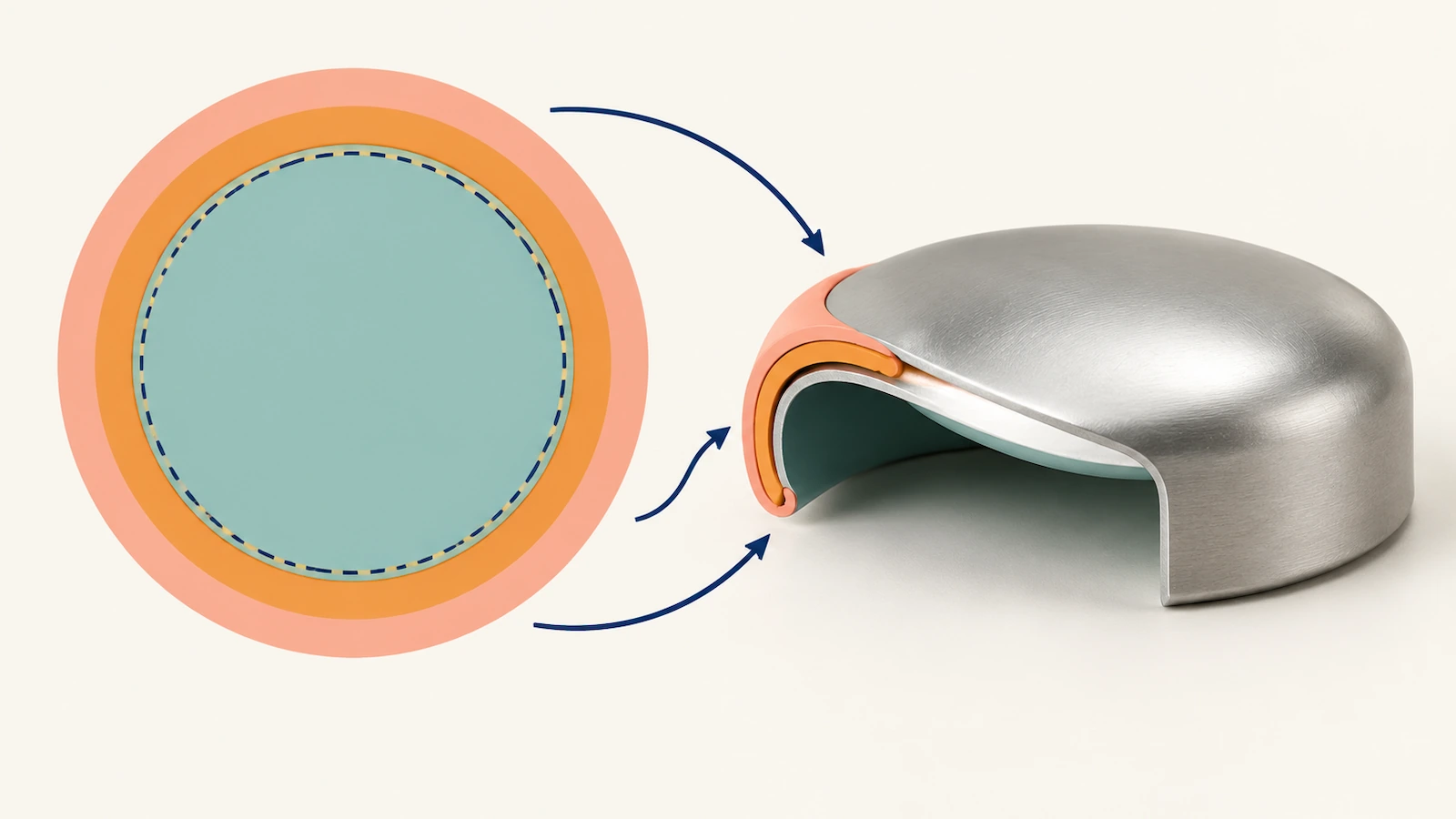
 Quick answer: Good custom button design is built on three concentric circles. The cut line is the edge of the printed paper. The face edge is where the metal shell starts to curve. The safe zone sits inside the face edge. Extend backgrounds all the way to the cut line, and keep every logo, face and word inside the safe zone. Choose the diameter based on viewing distance and word count. Judge the proof as a domed object, not as a flat circle.
Why Artwork That Looks Perfect on Screen Fails on a Round Button
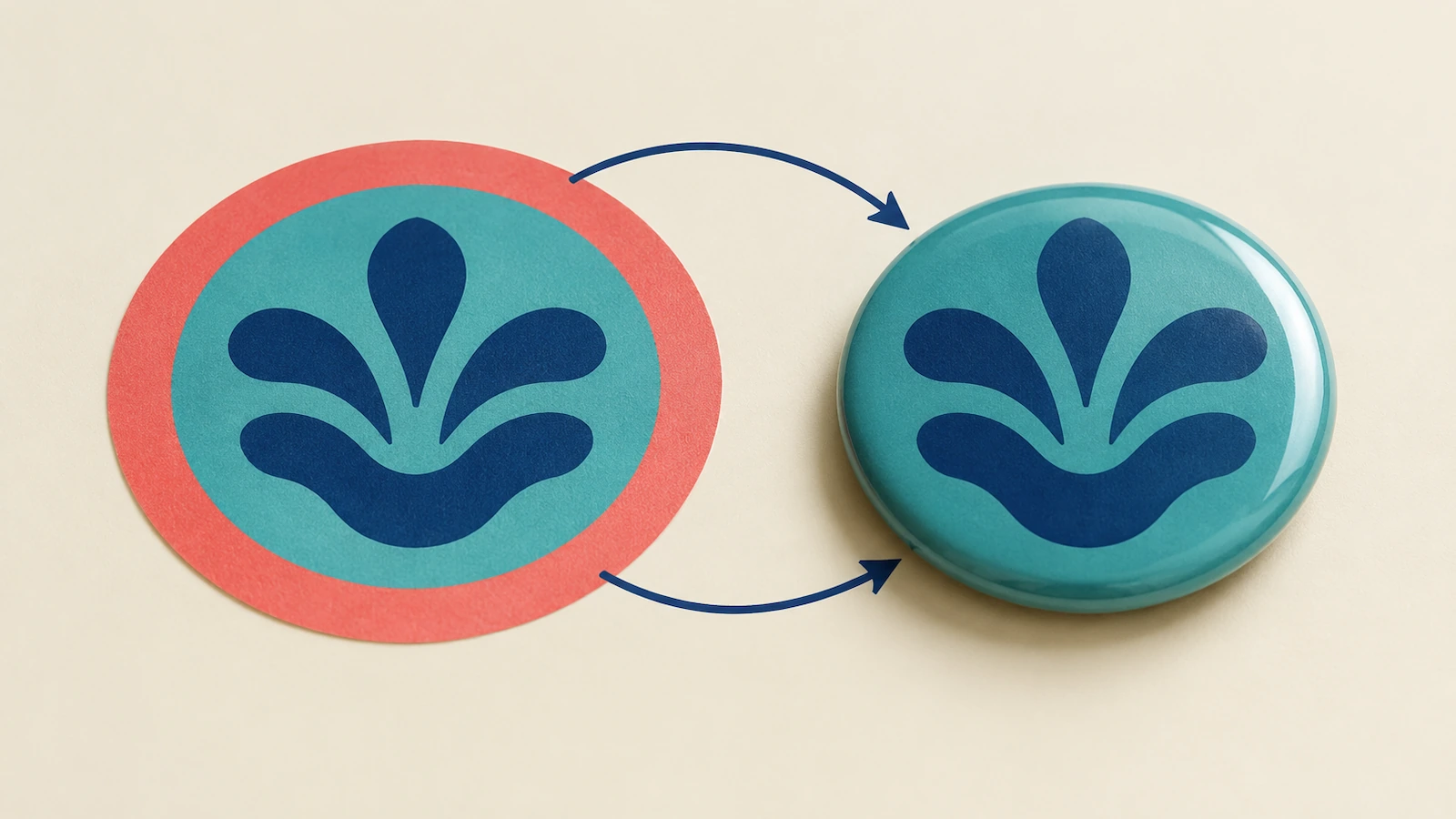
The problem: a pinback button is not a flat print. The printed circle is larger than the face you see. Its outer ring is pulled over the edge of a steel shell under clear film, then tucked behind it. Anything placed in that ring bends sideways or disappears. Your design file shows a tidy, flat disc, so nothing warns you about this until the parts are pressed.
The cost: the failures follow a predictable pattern in buyer complaints and prepress reviews:
- Taglines lose their first and last letters.
- Portraits lose the top of the head.
- A thin decorative border exposes even a slight off-center press.
- Bright on-screen brand colors print dull.
- Low-resolution photos turn soft under a glossy film.
These problems usually surface after hundreds of pieces exist, often days before an event. A button also has to earn attention. U.S. promotional product distributors sold an estimated $26.09 billion of merchandise in 2023, according to PPAI's annual sales volume estimate[1]. Your button competes with every tote, lanyard and sticker in that pile.
The solution: treat the round face as a layout system with fixed zones. Size it for its real viewing distance. Then check the proof the way a wearer will see it. The rest of this guide walks through that system.
What Custom Button Design Actually Covers
Physically, a pin-back button is printed artwork sealed under a clear protective layer and crimped over a metal disc, with a pin fastener at the back. The Wikipedia entry on pin-back buttons[2] gives a fuller description. Designing for this format means preparing flat artwork that will be stretched around a curve. The geometry has barely changed since the badge pin patent granted to Whitehead & Hoag in 1896, which is recorded in the DATAMP patent archive[3]. The protective layer has changed from celluloid to modern clear film, but the wrap still happens.
Every template divides the circle into the same four zones:
| Zone | Where it sits | What belongs there | Most common mistake |
|---|---|---|---|
| Cut line | Outermost circle of the printed paper | Background color or pattern only | Leaving white paper here, which shows as a pale rim |
| Wrap ring | Between the cut line and the face edge | Continuous background that can bend and tuck | Placing text, borders or photo detail that gets curled away |
| Face edge | The line where the shell turns from front to side | Nothing critical; treat it as a hazard line | Using it as a design border, which exposes any off-center shift |
| Safe zone | Inside the face edge, inset by the template margin | Logos, faces, headlines, QR codes | Stretching type to the face edge to "fill the circle" |
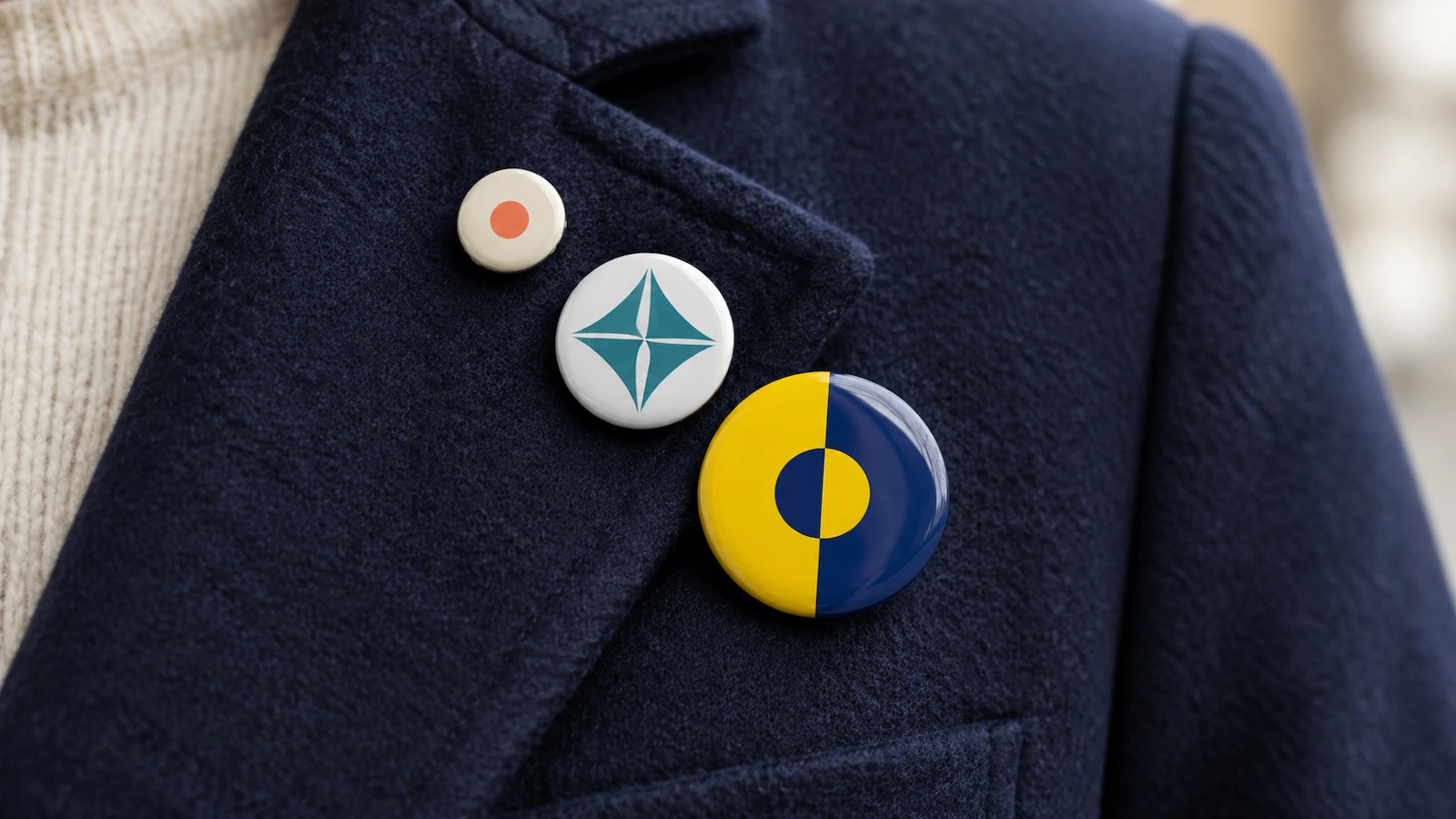
Brevity has also been part of the format from the start. Design writers at AIGA Eye on Design[4] describe the pin-back button as a place for self-expression long before social media. JSTOR Daily[5] traces how buttons carried compact messages. Archives such as the University of Iowa Special Collections[6] preserve them as records of public opinion. The examples that last tend to be the ones with one idea per face.
Custom Button Design in Seven Steps
Step 1: Choose the diameter by viewing distance and message load
Decide two things before you open a design file: how far away the reader will be, and how many elements must be readable from there.
- A volunteer's name is read at handshake distance.
- An "ask me" staff button has to work across a booth.
- A memorial photo is held in the hand.
The bands below follow common U.S. industry conventions. Available diameters depend on press tooling, so confirm them with your supplier.
| Size band | Typical diameters (industry convention) | Realistic content | Where it works |
|---|---|---|---|
| Small | About 1 in to 1.25 in | One icon or one to two short words | Collectible sets, discreet staff or member markers |
| Standard custom round buttons | About 1.5 in to 2.25 in | Logo plus one short line, or one portrait | Event giveaways, campaigns, brand programs |
| Large custom buttons | About 3 in and up | Headline plus a support line, group photo or QR code | Visibility across a room, staff identification, memorials |
Some rules of thumb for matching content to size:
- If the message needs a logo, a headline and a date, either move up a size band or cut an element.
- Do not shrink everything to fit. Shrinking costs legibility at exactly the distance where the button has to work.
- A 2.25 in button is widely treated as the "standard" size in the U.S. If a brief simply says "buttons," it usually means this size, so check it against the real viewing distance before you accept it.
Step 2: Build the file on the supplier's template, not a guess
The width of the wrap ring varies with the die and shell, so a generic circle downloaded from the web can put your safe zone in the wrong place. Ask for the exact template for each diameter, then set up the file like this:
- Artboard size: make the artboard the size of the full printed circle, not the visible face.
- Template layer: keep the template on a locked, non-printing layer.
- Logos and type: use vector files (AI, EPS, PDF or SVG) so edges stay sharp.
- Raster images: supply them at 300 ppi at final printed size.
- Color mode: work in CMYK unless you have agreed a spot-color reference.
- Bleed: run the background past the cut line so the press never exposes a white gap.
- Safe-zone margin: one widely circulated industry buyer's guide suggests keeping critical text at least 0.125 in inside the face edge. If your template marks a larger inset, follow the template.
Step 3: Lay out logos for a circle, not a rectangle
Wide horizontal logos are the biggest layout problem on round faces. Inside a circle, a wide mark can only grow until its corners hit the safe zone. That often leaves it as a thin strip across the middle with empty space above and below. Use one of these alternatives instead:
- The stacked version of the logo.
- The icon on its own.
- A badge lockup where the wordmark sits under the icon.
Visually heavy marks usually look better a little above the geometric center, because the curved face pushes the eye toward the lower half.
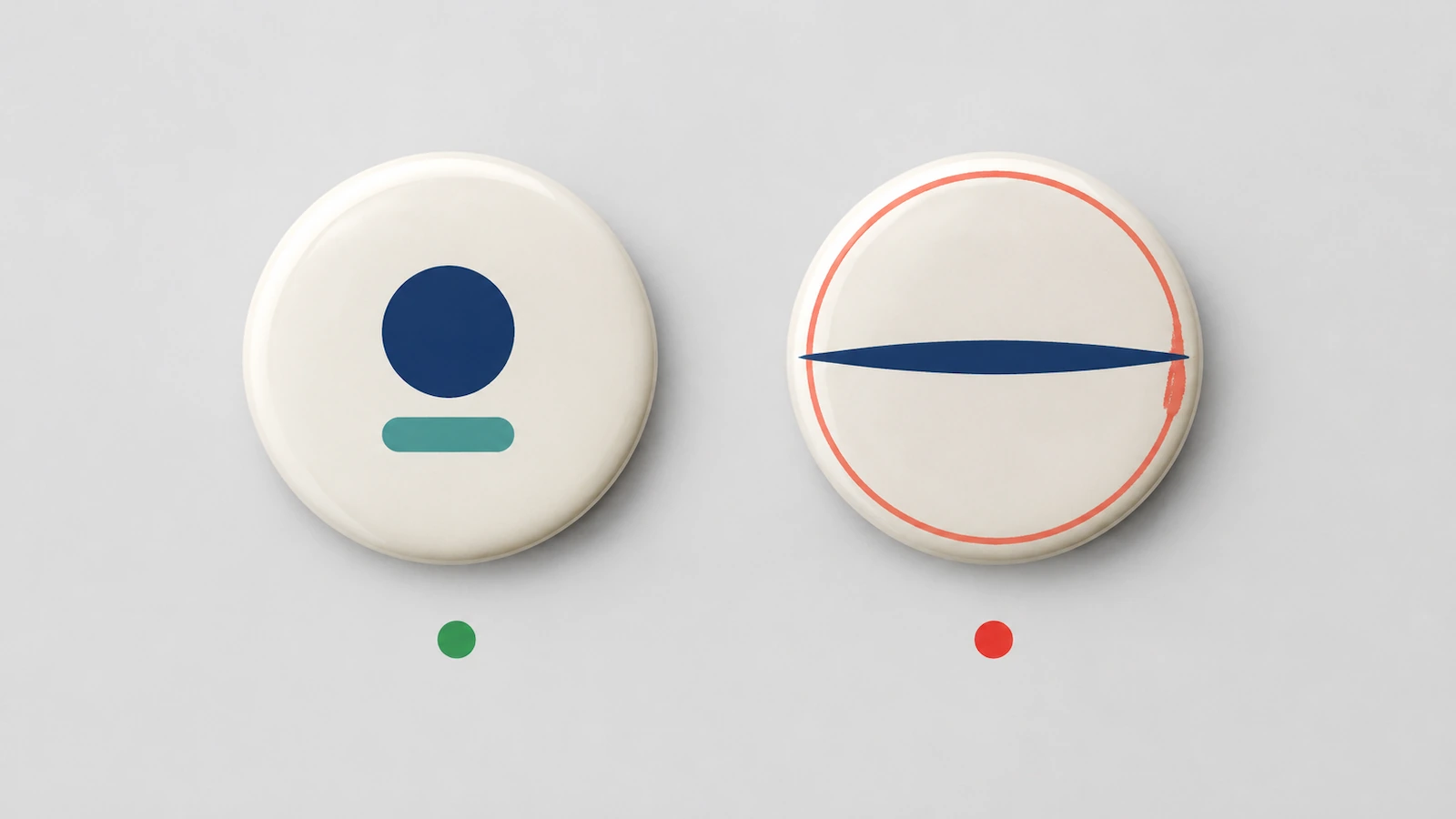
Avoid a thin concentric ring near the face edge. Crimping has a small positional tolerance, and a hairline ring turns any shift into a visibly lopsided border. If the brand needs a ring, make it bold and put it well inside the safe zone. Alternatively, drop the ring and let a solid color field run off into the wrap. Very fine strokes and small counters can also break up under the reflective film, so test the smallest detail at real size.
Step 4: Prepare photo pinback buttons with pixel math and generous crops
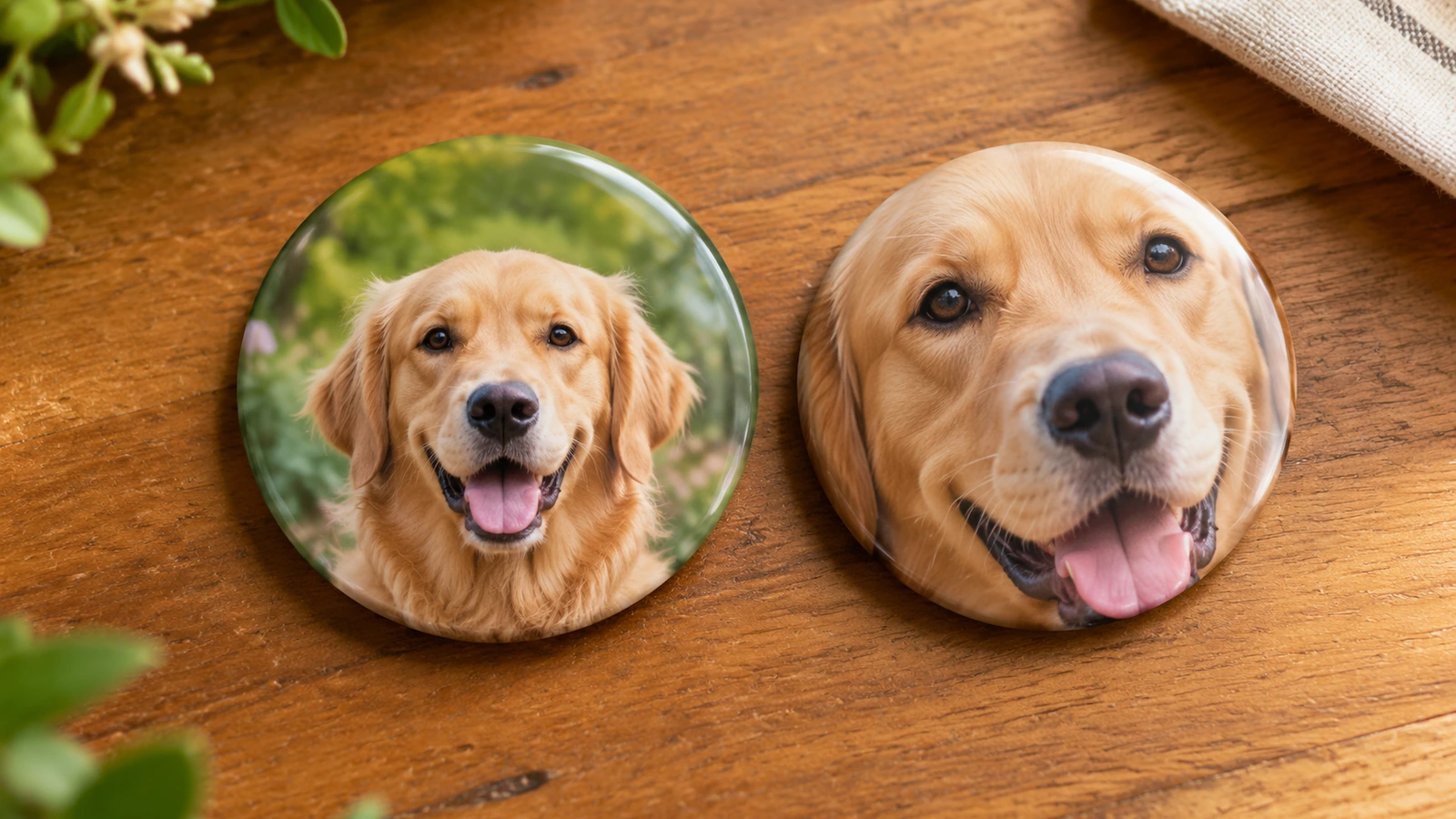
For photos, start with the numbers. Required pixels equal the diameter of the printed circle in inches multiplied by 300. For example, a printed circle 3 in across needs an image at least 900 × 900 px after cropping. Phone photos usually meet this. Images pulled from social media or messaging apps often do not, because those services compress uploads.
Then fix the composition:
- Keep the subject central. Leave clear space between the top of the head and the safe-zone line.
- Keep the edge calm. The outer ring should be continuous sky, wall or solid color, because a busy edge looks chaotic as it bends.
- Extend the background if needed. If the original crop is too tight, extend the background in an image editor, or place the photo on a color field.
- Light it well. Even, front-lit faces reproduce better than backlit shots under a glossy film.
- Handle shared photos with care. For memorial or team photos, confirm you have permission to use everyone's image before distributing it.
Step 5: Set text hierarchy you can read at the real distance
Limit each face to a headline and, at most, one supporting line. As a sizing benchmark, the same buyer's guide suggests a minimum of 14 to 16 pt type on a 2.25 in button. Scale that proportionally for other diameters, and confirm it on a printed test. Other text rules:
- Typefaces: use sturdy sans-serif or slab weights. Thin scripts and high-contrast serifs fall apart at button sizes.
- Reversed text: white type on a dark field needs a heavier weight than dark type on light, because the dark ink spreads into thin letterforms.
- Curved text: run it along a path drawn on the safe-zone line, not the face edge, and open the letter spacing slightly so letters don't crowd on the inside of the curve.
- Rim text: some presses can print on the curled side of the button. Treat it as a bonus, because the wearer sees it only from an angle.
Step 6: Plan color and finish for paper under film
Printed paper cannot reproduce neon or backlit RGB colors. Expect electric blues, vivid greens and hot pinks to shift. Finish changes color too:
- Glossy film: deepens saturated colors and adds glare.
- Matte finish: softens contrast but is easier to read under bright venue lighting.
- White paper: gives the cleanest whites.
- Clear stock: where offered, it lets the metal show through, so "white" areas look silver.
- Blacks: large black areas usually print richer as a built black than as a single ink. Agree the recipe with prepress instead of guessing.
When a brand color is non-negotiable, supply a spot-color reference and ask for a physical sample, not only a screen proof.
Step 7: Preflight the artwork and test it on a curve
Run this check before you approve anything:
- The background reaches the cut line on every side.
- No text, face or logo crosses into the wrap ring.
- Logos are vector, and any photos meet the pixel math from Step 4.
- There are no hairline rings at the face edge.
- Reversed type is heavy enough to stay readable.
- File names state the design, diameter and version.
Teams running recurring campaigns should write this list down as a short internal procedure. Guidance such as Penn State Extension's guide to writing standard operating procedures[7] can help, so that every new designer applies the same check.
For a cheap reality check, press one mockup on a makerspace button maker before committing to a run. The University of Alabama in Huntsville MultiMaker Lab[8] recommends 24 to 28 lb copier paper for its press. That makes a curved test print easy to produce, and it shows exactly where your edge elements end up. When you receive a digital proof, compare it against a domed mockup as well as the flat circle.
If the buttons are aimed at children, design and compliance overlap:
- The U.S. Consumer Product Safety Commission treats children's products as those designed primarily for children 12 or younger. See the CPSC guidance on children's products[9].
- Accessible components of those products may not exceed 100 ppm total lead, under the CPSC total lead content rule[10].
- Material-specific determinations are published in the Federal Register notice of August 26, 2009[11].
- Decide early whether the artwork targets kids. That decision affects documentation requests and may favor a non-pin backing.
Ordering workflows, quantities and timing are covered on our page for custom pinback buttons for campaigns, events and branded programs. Send your template-ready files there for a quote.
Layout Approaches Compared: What Holds Up After the Wrap
Most button artwork falls into one of four layout types. Each fails in a different way when it meets the curve.
| Layout approach | Smallest size that usually works | Wrap risk | How to handle bleed | Best fit |
|---|---|---|---|---|
| Text only (slogan or name) | Small, if one or two words | High when type is stretched toward the edge | Solid color field to the cut line | Campaigns, staff identification, awareness messages |
| Logo led | Small with icon; standard with full lockup | Medium; wide marks and edge rings cause most issues | Brand color field or subtle pattern into the wrap | Brand programs, trade show giveaways |
| Photo led | Standard; large for groups | High when crops are tight or edges are busy | Extend the photo background or place it on a color field | Memorials, reunions, fan and team buttons |
| Pattern with central badge | Standard | Low; the pattern absorbs the curve | Pattern runs past the cut line | Multi-design sets, collectible series |
Choose the layout type before choosing the size. If you need several elements at once, such as a photo, a name and a QR code, a large face is usually the honest answer. On a standard face, two of the three elements will be undersized. For multi-design sets, keep the same template, safe zone and type scale across every design so the set looks consistent when the buttons sit side by side.
FAQ
FAQ: What size should I choose for a logo button?
For a single icon, a small face is often enough. A full logo lockup with one line of text usually needs a standard face, roughly 1.5 to 2.25 in by industry convention. If the button must be read across a room, or you need extra elements, move to large custom buttons. Confirm the available diameters with your supplier before you design.
FAQ: How much bleed does button artwork need?
Bleed depends on the specific die and shell, so use the supplier's template for your diameter. Whatever the measurement, the rule is the same: continue the background all the way to the cut line, and keep critical content inside the safe zone the template marks.
FAQ: What resolution do photo pinback buttons need?
Aim for 300 ppi at final printed size. Multiply the printed circle's diameter in inches by 300 to get the minimum pixel width after cropping. For example, a 3 in printed circle needs 900 px. Avoid images saved from messaging apps, which usually compress files.
FAQ: Can I put a QR code on a button?
Yes, but reserve it for larger faces. Print it in dark-on-light at high contrast, and leave a clear margin around the code. Keep the whole code inside the safe zone, because the dome curves its outer modules. Test-scan a pressed mockup from typical distances before approving the run.
FAQ: Should my design include a border ring?
Only if it is bold and sits well inside the safe zone. A thin ring at the face edge makes even a slight off-center press look crooked. Letting a solid color run off into the wrap usually looks cleaner.
FAQ: Do vector files really matter for buttons?
Yes, for logos and type. Vector edges stay sharp at any diameter. Raster logos enlarged from small web graphics print with soft or jagged edges, and the glossy film makes those edges more noticeable.
FAQ: Are there extra rules if the buttons are for children?
In the U.S., products designed primarily for children 12 or younger fall under CPSC children's product requirements. Those requirements include a 100 ppm total lead limit for accessible components. Tell your supplier at the quote stage if children are the intended audience.
Key Takeaways
- The wrap geometry is old, so design around it rather than against it — the pin-back format dates to an 1896 patent (Source)
- Your button competes in a crowded promotional market, so one clear idea per face wins — an estimated $26.09 billion in U.S. distributor sales in 2023 (Source)
- A cheap curved mockup reveals edge problems before a full run does — makerspace presses work with 24 to 28 lb copier paper (Source)
- Children's buttons carry a hard material limit that you must flag up front — 100 ppm total lead in accessible components (Source)
- Audience age decides whether children's product rules apply — products designed primarily for ages 12 and under (Source)
Conclusion
Custom button design comes down to respecting the curve. Pick the diameter for the real viewing distance and message load. Build on the supplier's exact template. Keep logos, faces and words in the safe zone, and let backgrounds absorb the wrap. Then judge every proof as a domed object. Follow these steps and the artwork that leaves your desk is the same artwork your audience sees on a lapel.
When your files are ready, send them with the intended audience and use case through our custom pinback buttons page. We will confirm available diameters and templates and return a quote.
Sources
- PPAI Sales Volume Estimate: A Record Year, But Few Celebrating. Promotional Products Association International, accessed October 2026. ↩
- Pin-back button. Wikipedia, accessed October 2026. ↩
- U.S. Patent 564,356, Badge Pin or Button (1896). DATAMP patent archive, accessed October 2026. ↩
- The Pin-Back Button Was a Place for Self-Expression Before Social Media. AIGA Eye on Design, accessed October 2026. ↩
- Message in a Button. JSTOR Daily, accessed October 2026. ↩
- Buttons, Buttons, Buttons. University of Iowa Special Collections blog, October 11, 2023. ↩
- Standard Operating Procedures: A Writing Guide. Penn State Extension, accessed October 2026. ↩
- MultiMaker Lab: Button Maker. University of Alabama in Huntsville Library, accessed October 2026. ↩
- Children's Products. U.S. Consumer Product Safety Commission, accessed October 2026. ↩
- Total Lead Content. U.S. Consumer Product Safety Commission, accessed October 2026. ↩
- Children's Products Containing Lead; Determinations Regarding Lead Content Limits on Certain Materials. Federal Register, August 26, 2009. ↩






The information below is required for social login
Sign In
Create New Account