We use cookies to enable our websites to remember information, to help some website functionalities to work properly, to understand how you interact with and use our websites and to display you content and ads that are relevant and engaging for you.
By clicking Accept All you consent to the use of these cookie.
The store will not work correctly when cookies are disabled.
Quick answer: Strong sticker sheet design comes down to six file decisions: simplify your logo so it reads at small sizes, extend background art past every cut line as bleed, keep text and fine detail inside a safe zone, leave consistent gaps between kiss-cut shapes, lock one color palette across the set, and group designs by size and theme so the sheet reads as a single product.
Sticker sheet design is where most brand sticker projects succeed or stall. The usual pattern looks like this. A marketing team exports the full logo lockup, a few campaign icons, and a mascot. Someone drops them onto a sheet template and sends the file. At proof stage, the tagline is a grey smudge, a thin white sliver shows along one edge, two shapes sit so close that the cutter merges them, and the "brand blue" on the badge doesn't match the blue on the mascot because one file was converted from RGB and the other wasn't.
None of these problems comes from the printer. They come from the artwork file. Buyers in community forums keep reporting the same results: stickers that look visibly asymmetrical because the art sat too close to the cut path, colors that came out darker than the monitor showed, and illustrations that got lost inside holographic film. Each one can be prevented before the file leaves your desk. This guide covers the artwork and layout decisions brand and marketing teams control. Ordering, materials, and pricing are covered separately on the product page.
What Is Sticker Sheet Design?
Sticker sheet design is the work of arranging several artworks, plus a matching cut path for each one, on a single shared backing so every piece prints cleanly, cuts accurately, and peels on its own. A print-ready file has four layers that must agree with each other:
Artwork: the visible design for each sticker.
Bleed: extra background that runs past the cut line so slight cutter drift never exposes blank material.
Cut path (dieline): a vector outline that tells the cutter where to slice through the face material and adhesive.
Safe zone: an inner margin where text and critical detail must stay.
On a kiss-cut sheet, the blade cuts the sticker shape but leaves the backing intact, so every piece peels separately while the rest of the sheet stays whole. If you need the format basics or want to see how many designs a sheet can hold, the custom kiss-cut sticker sheets page covers that. This article stays with the artwork.
Sheets are a small format in the wider label industry. FINAT's 2026 market data shows that sheets fell from 7% to 3% of European self-adhesive labelstock demand[1] over two decades, while filmic rolls rose to 30%. That has a practical consequence. Sheets are now bought for the experience a set creates, as a giveaway, retail bundle, or event kit, not for labeling efficiency. The layout itself is part of what the customer is paying for.
Short-run digital printing is what makes multi-design sheets affordable. In PRINTING United Alliance's Fall 2025 survey, digital or hybrid printing accounted for an average 39.3% of package and label output[2], with respondents expecting 53.5% within five years. Digital presses don't need a new plate for each design, so ten different stickers on one sheet cost about the same to set up as one design repeated ten times. The limit is no longer the press. It is how disciplined your file is.
Every sticker on a sheet needs three nested boundaries: bleed outside the cut, the cut path itself, and a safe zone inside it.
How to Prepare Sticker Sheet Design Files in 7 Steps
Step 1: Write a one-line brief for the sheet
Decide what the sheet is for before you open a design tool. A trade-show giveaway needs one dominant logo sticker that people recognize from across a booth. A retail set needs variety and a collectible feel. A packaging insert has to suit the unboxing moment and the envelope it travels in. Write the purpose, the audience, and the one sticker people should notice first. That single "hero" decision drives every layout choice that follows.
Step 2: Adapt your logo for small sizes
Most custom stickers for business logo programs fail at this step. The logo is built for letterheads and websites, then shrunk onto a sticker smaller than a coin. Build three versions before you lay anything out:
Full lockup: the symbol, wordmark, and any tagline, used only on the largest sticker on the sheet.
Compact lockup: the symbol and wordmark only, stacked or tightened, with the tagline removed.
Mark only: the symbol alone, with thin internal lines thickened and small counters (the enclosed spaces in letters) opened up.
Practical thresholds to check on each version:
Strokes thinner than about 0.25 pt (roughly 0.09 mm) can disappear in digital print. Aim for 0.5 pt or heavier at final size.
Body text below about 6 pt becomes hard to read. Light or condensed typefaces need roughly 8 pt.
White text reversed out of a dark background needs about one extra point of size and weight, because ink spread closes the gaps.
Remove soft gradients, drop shadows, and hairline outlines from the small versions. They print as muddy bands at small scale.
Then test each version physically. Print the sheet at 100% scale on office paper, hold it at arm's length, and convert one copy to grayscale. If the mark only works because of color contrast, it will struggle on metallic or clear films where contrast drops.
A full lockup, compact lockup, and mark-only version let the logo stay legible on every sticker size in the set.
Step 3: Set up the canvas correctly
Start from your printer's sheet template rather than a blank artboard. The template fixes the outer sheet edge, the printable area, and the margin the cutter needs at the border. Then:
Work at final size in a CMYK document. Raster artwork such as photos or painted illustrations should be 300 ppi at placed size, not upscaled afterwards.
Keep logos, type, and icons as vector shapes. Convert fonts to outlines so a missing font can't reflow your text.
Put artwork, cut paths, and any white-ink or special-finish layers on separately named layers.
Label dimensions on your proof in both inches and millimeters. Buyer reviews include stickers that arrived in centimeters when inches were expected, and a dual-unit proof prevents that mix-up.
Step 4: Build bleed and safe zones into every shape
Cutters and printers register separately, so plan for about 0.5 to 1 mm of drift between where ink lands and where the blade cuts. Bleed and safe zones absorb that drift.
Bleed: extend background color or pattern past the cut path. Published printer specifications usually fall between 1/16 in (about 1.5 mm) and 1/8 in (about 3 mm). Follow your template where one exists.
Safe zone: keep text, faces, and logo details at least the same distance inside the cut path. A word touching the cut line is the main cause of the "asymmetrical sticker" complaint, because any drift shows immediately against a nearby edge.
Sheet edge: the template's outer margin is not bleed. Never let a sticker's cut path cross into it.
If you would rather not bleed full-color art, add a white offset border around each design instead (see the border comparison below). A uniform white border hides drift better than full-bleed artwork does.
Step 5: Draw clean cut paths and space them consistently
The cut layer decides whether a sticker peels cleanly or tears. Set it up the way prepress teams expect:
Use one closed vector path per sticker, drawn in a dedicated spot color (often named CutContour or Dieline), with a thin stroke, no fill, and overprint turned on so it doesn't knock out the art underneath.
Smooth the contour. Follow the overall silhouette rather than every hair or spike. Inner corners tighter than about 1 mm radius and narrow "necks" are where vinyl stretches or rips during peeling.
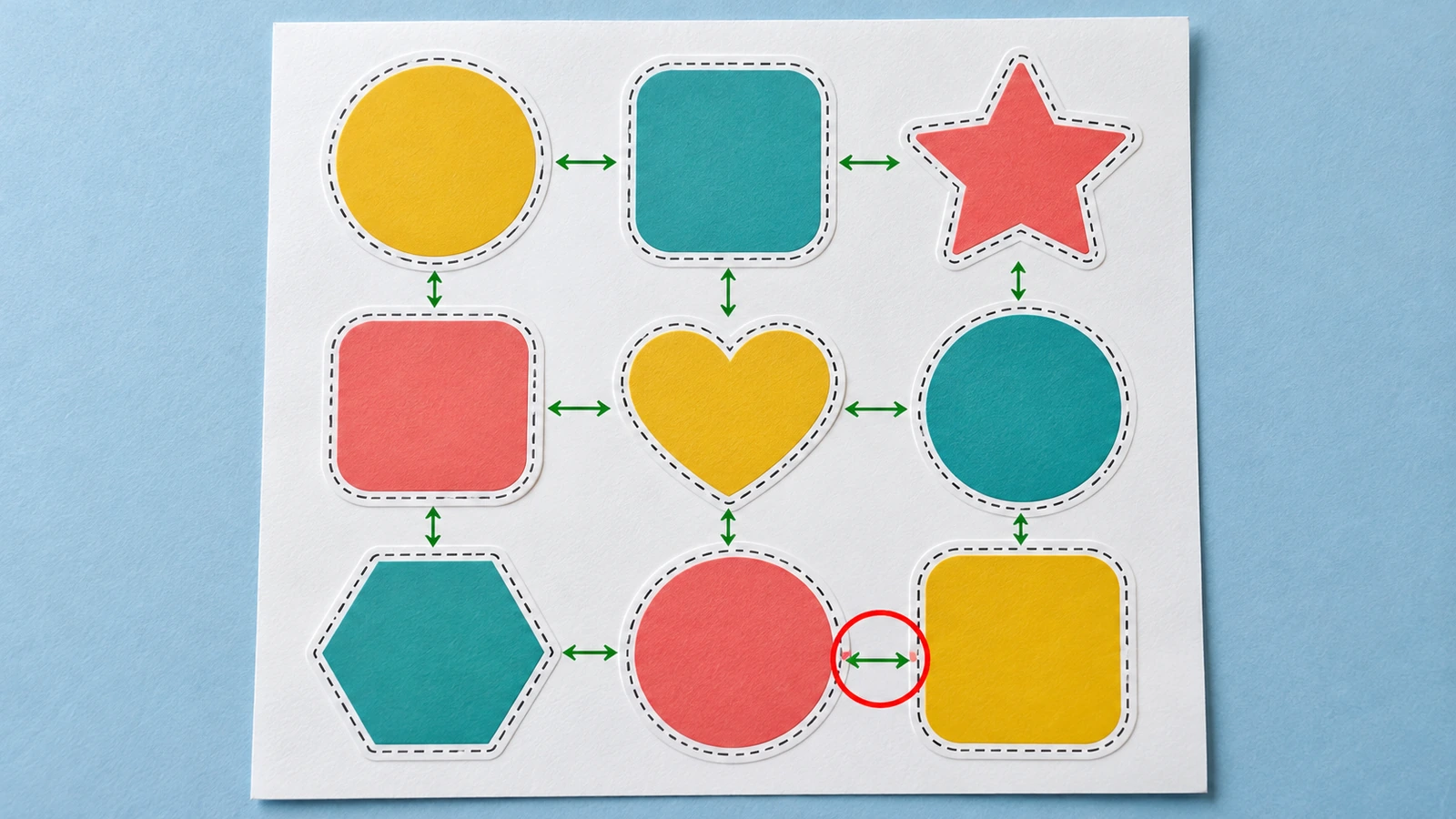
Space shapes evenly. Printer templates range from about 1/16 in (1.5 mm) to 1/4 in (6 mm) between cut paths. Without a template, 1/8 in (3 mm) is a safe default, with 4 to 5 mm near sharp points where the blade turns.
Keep very small shapes, under about 3/4 in (19 mm), away from the sheet edges and give them extra room. Tiny round stickers are the hardest to lift with a fingernail, so consider a small peel notch or a slightly larger tab shape.
Peel behavior is a measurable property, not a matter of opinion. The label industry tests it with standardized methods such as FINAT's 180° peel and low-speed release force tests[3]. You don't need a lab, but the principle applies: a shape with long, thin protrusions puts all the peeling force on a narrow strip of face material. Simplify the shape and the release becomes predictable.
Even gaps between cut paths prevent merged cuts. The red pair shows the spacing mistake to avoid.
Step 6: Lock color consistency across the set
When stickers on one sheet come from different source files, color drift is almost guaranteed. Fix it at the file level:
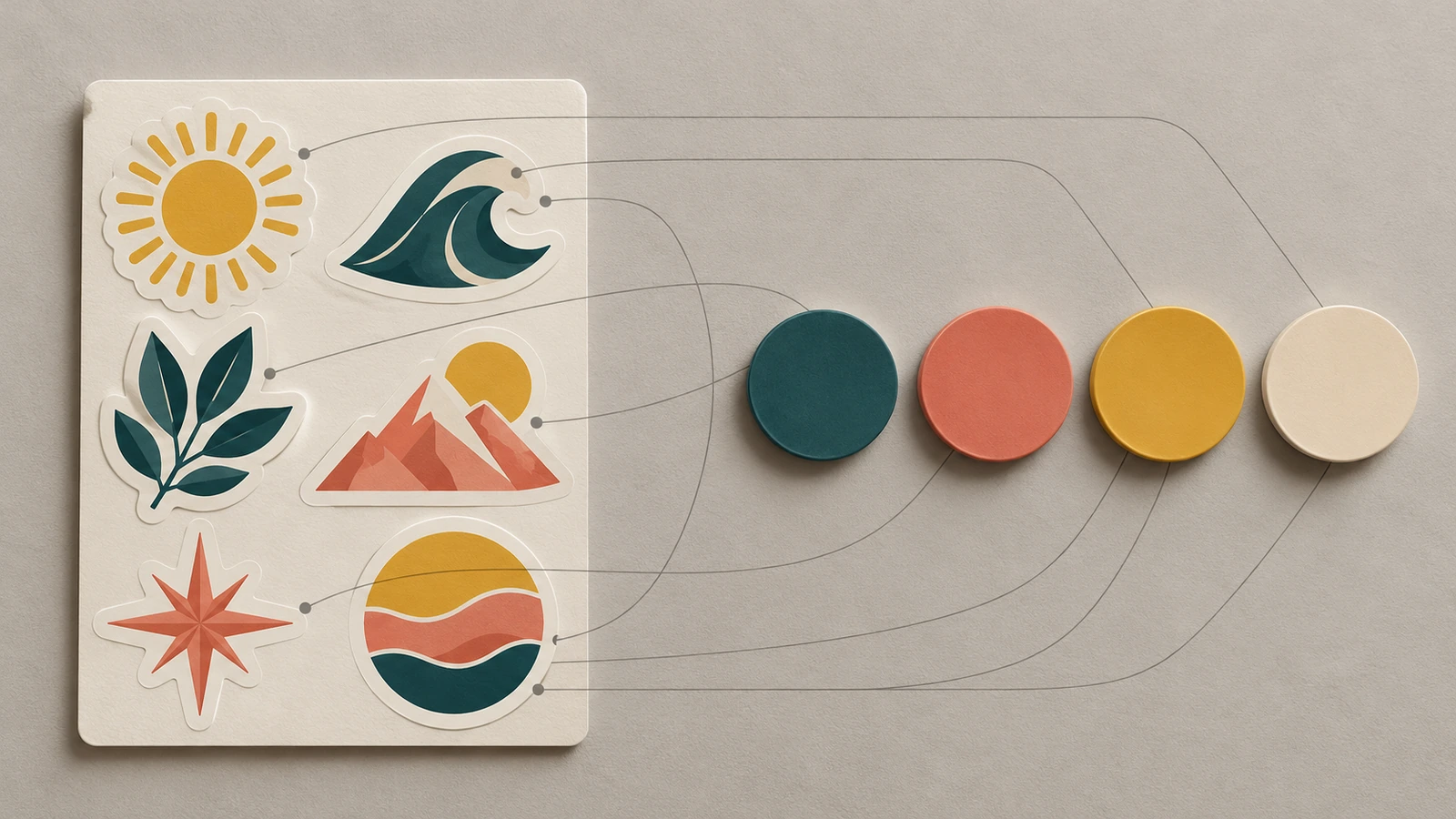
Define the palette once as CMYK builds, with a Pantone reference for each brand color, and apply those swatches to every design. Don't sample colors by eye from placed images.
Convert all RGB assets with the same color profile before placing them. Bright screen greens, oranges, and purples sit outside the CMYK range and will shift duller, so preview the shift and adjust before proofing.
Use one rich-black recipe across the sheet. Two different "blacks" sitting side by side look like a printing fault.
Avoid large flat areas of pale pastel. Buyers often describe light tones as washed out once printed, and a slightly deeper tint holds up better.
Specialty films such as holographic or metallic lower contrast. Keep fine linework and small text off those areas. One verified buyer said their illustration got "lost in the sauce" of the holographic finish.
Approve a physical proof and keep the signed sample. On reorders, compare new sheets to that sample rather than to a monitor.
Durability depends on design too. Ink at the very edge of a sticker takes the most rubbing in pockets and bags, which is why the imaging industry treats print rub resistance as a formal test category under ISO 18947-1:2021[4]. Keeping thin text away from the outer edge protects legibility as the sticker wears.
One defined palette applied to every design makes a mixed set look like a single product.
Step 7: Group the designs into a coherent sheet
A sheet is seen as a whole before anyone peels a single piece. Arrange it on purpose:
Place the hero first. Put the largest logo sticker top-left or slightly above center, where the eye lands first.
Use three size tiers. One or two large pieces, a middle tier of icons or characters, and small fillers such as stars, dots, or arrows. Three tiers read as designed. Ten slightly different sizes read as random.
Balance visual weight. Spread dark and saturated designs across the sheet so one corner doesn't feel heavy.
Group by theme. Keep related designs near each other, for example product icons in one band and campaign slogans in another, so the sheet tells a story.
Keep gutters consistent. Use the same spacing value everywhere. Uneven gaps look like errors, even when every cut is correct.
Check the sheet in context. If it goes into a mailer or gets folded into a kit, keep the hero clear of the fold or crop line.
Before export, run a preflight pass. Confirm that every cut path is closed, no text sits outside a safe zone, bleed exists on every full-color shape, all colors come from the defined swatches, fonts are outlined, and raster images are 300 ppi. These details let teams design custom stickers in-house without lengthy proof back-and-forth.
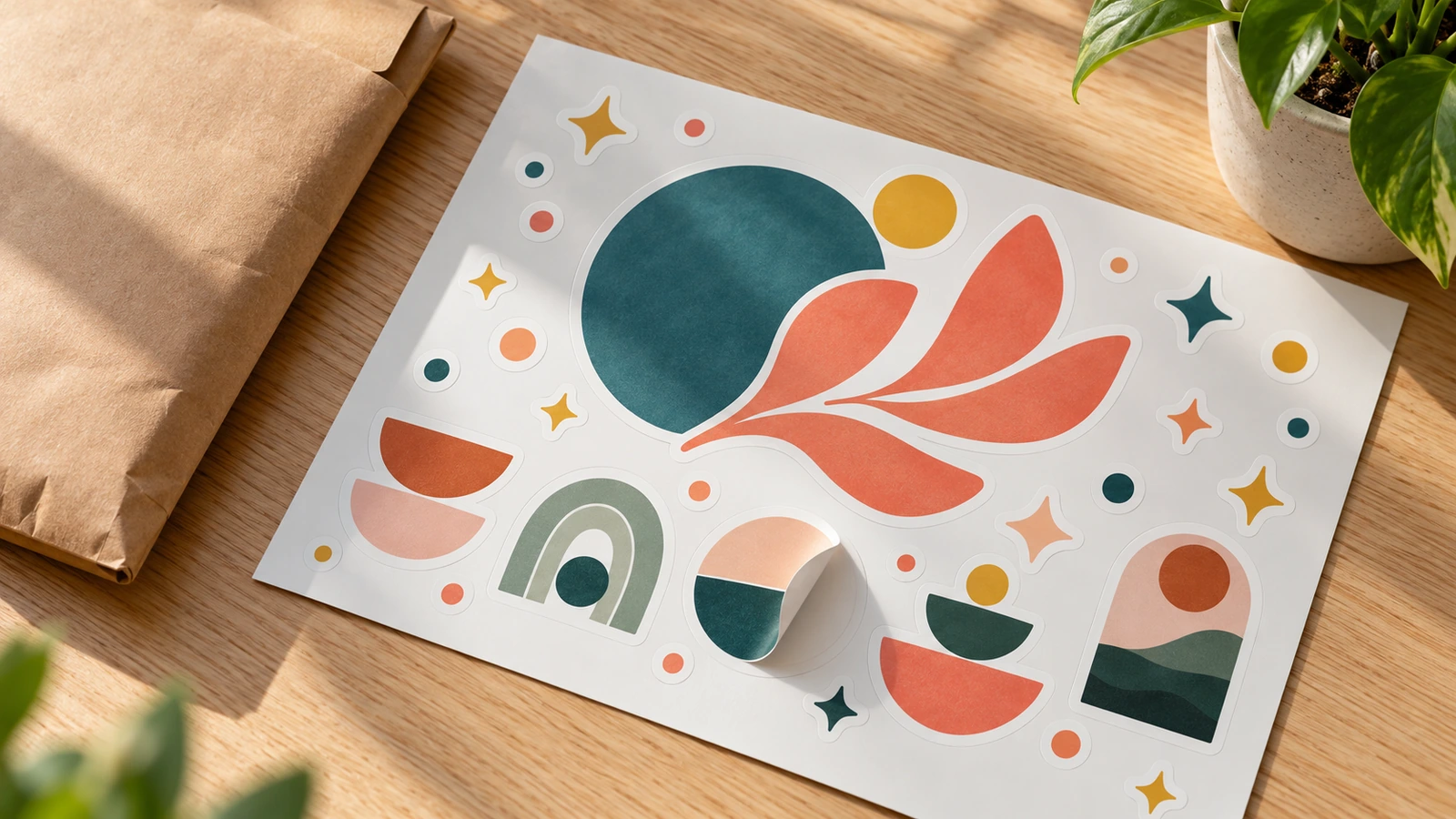
A hero piece, a middle tier, and small fillers create a clear hierarchy that customers read at a glance.
Which Claims and Symbols Belong on Brand Stickers?
Brand teams often add a recycling arrow, an "eco-friendly" badge, or a sustainability line to a sticker set. Treat those elements as regulated claims, not decoration.
In the United States, environmental marketing claims are still assessed under the FTC's Green Guides (16 CFR Part 260)[5]. These guides require substantiation for any "recyclable" or recycled-content statement and an exact percentage for partial recycled content. The guides have not been comprehensively revised since 2012, and the FTC confirmed in early 2025 it had no update to share[6]. Vague wording such as "green vinyl" remains risky.
California sets a stricter line. Under SB 343, recycling symbols and "recyclable" indicators are restricted on products and packaging manufactured after October 4, 2026[7] unless the material meets statutory criteria. A federal court issued a preliminary injunction on July 14, 2026 that blocks enforcement but does not repeal the law. Labeling programs are already adjusting. How2Recycle has moved some materials from "widely recyclable" to "check locally"[8].
For sets sold into the EU, harmonized material-sorting labels under the Packaging and Packaging Waste Regulation are expected no earlier than August 12, 2028[9], so don't add improvised EU sorting icons now. The safest default is to leave recycling symbols off decorative stickers entirely and put substantiated sustainability messaging on your website or packaging copy instead.
Layout and Border Options Compared
There is no single correct layout. The right one depends on how many designs you have and what the sheet is for. Use this comparison to choose before you start arranging.
Hero crowding the edge; tiny fillers placed too close to it
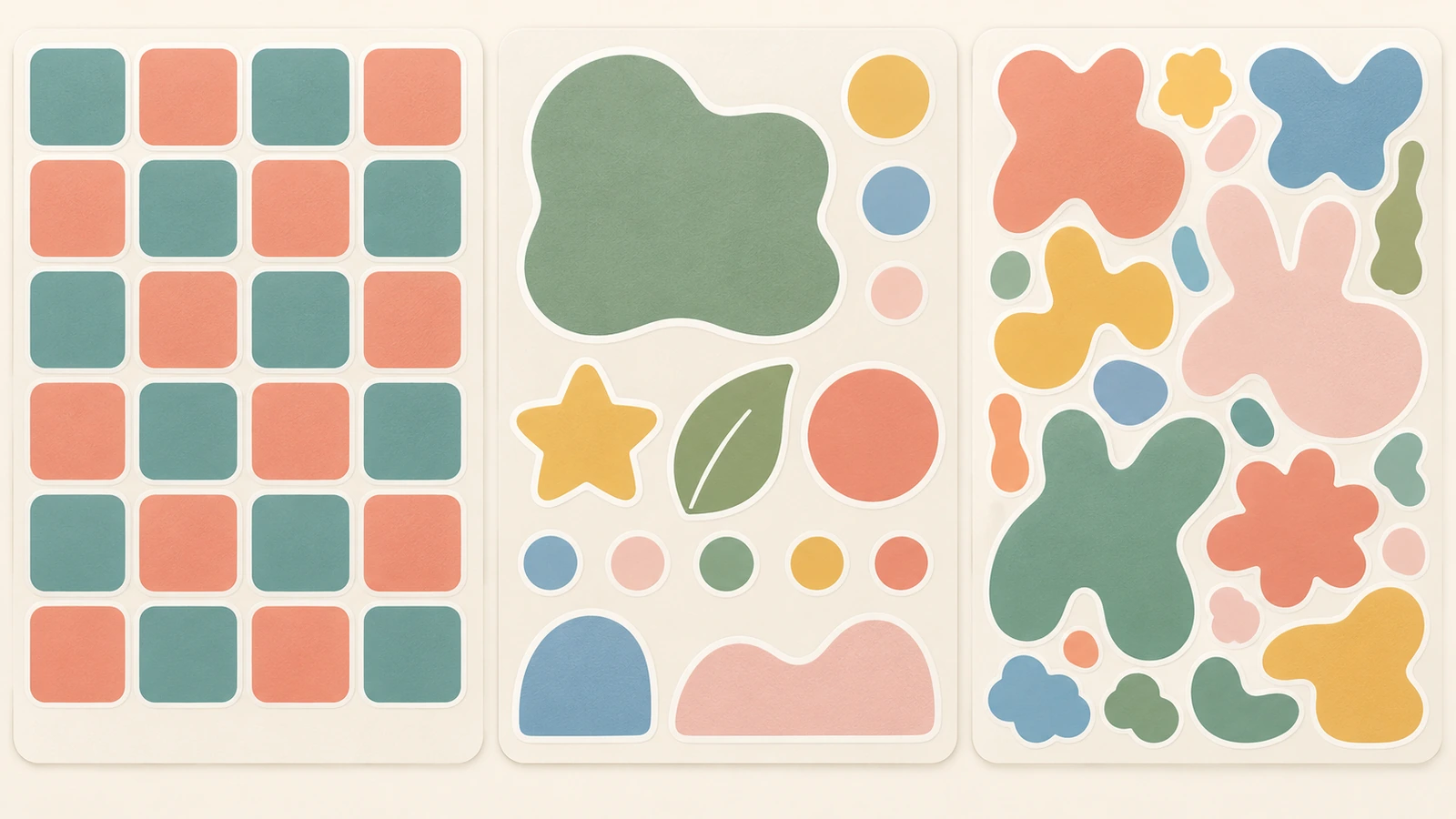
Organic scatter (collage)
Character and illustration sets, collectible retail sheets
High: shapes must nest by hand
Higher: irregular gaps, many inner corners
Uneven gutters; small pieces stranded at corners
Repeated single design
Packaging seals, mass event handouts
Lowest
Lowest
No variety; works only when the one design is very strong
Border treatment is the second decision, and it affects both how forgiving the file is and how the set looks.
Border style
Look
Drift tolerance
Design requirement
White offset border
Classic "die-cut sticker" outline
High: drift shows as slightly uneven white, rarely as a defect
Consistent offset width on every piece
Full-bleed contour
Artwork runs right to the edge
Lower: needs generous bleed and a strict safe zone
Background art extended past every cut path
Rectangular or rounded tile
Badge or card style
Medium: straight edges show misalignment
Equal internal margins on all four sides
Pick one border style per sheet. Mixing white-bordered and full-bleed pieces is the fastest way to make a set look like it came from several sources.
Grid, hero-led, and organic layouts suit different set sizes and purposes.
FAQ
FAQ: What file format works best for sticker sheet design?
A layered PDF, AI, or EPS file with vector artwork and a separate cut-path layer in a named spot color is the most reliable choice. High-resolution PNG files (300 ppi at final size) work for raster illustrations, but the printer then has to generate cut paths for you, which gives you less control over contour shape and spacing.
FAQ: How much bleed does a sticker sheet need?
Most published printer specifications ask for 1/16 in to 1/8 in (about 1.5 to 3 mm) of bleed past each cut path, and the same distance as a safe zone inside it. Always use your printer's template value when one exists, because cutter tolerances differ between production lines.
FAQ: Can my full logo with tagline go on a small sticker?
Usually not. Taglines drop below readable size quickly, and thin strokes can vanish in print. Save the full lockup for the largest sticker on the sheet and use a compact lockup or the mark alone on smaller pieces. Test by printing the sheet at 100% scale on paper before approving it.
FAQ: Should every sticker on the sheet have a white border?
Not necessarily, but every sticker should use the same treatment. White offset borders tolerate cutting drift best. Full-bleed contours look more premium but need careful bleed and safe-zone setup. Mixing both styles on one sheet makes the set look inconsistent.
FAQ: Why do printed stickers look duller than my screen?
Screens emit RGB light, while print uses CMYK inks on a physical material, and many bright screen colors fall outside the CMYK range. Convert artwork with one profile before layout, build brand colors as defined CMYK swatches, avoid large flat pastel areas, and judge color against a physical proof rather than a monitor.
FAQ: Can I print a recycling symbol or "eco-friendly" on brand stickers?
Only with substantiation. US environmental claims are judged under the FTC Green Guides, and California's SB 343 restricts recycling indicators on products manufactured after October 4, 2026, although enforcement is currently paused by a court injunction. For decorative sticker sets, the lowest-risk choice is to leave these symbols off.
Key Takeaways
Sheets are bought for the experience, so layout quality is part of the product. — Sheets fell from 7% to 3% of European self-adhesive labelstock demand (Source)
Digital presses make multi-design sets practical; file discipline is now the constraint. — 39.3% of package and label output is digital or hybrid, expected to reach 53.5% in five years (Source)
Customized short runs are reshaping label work, so build reusable logo versions and templates once. — 45.5% of surveyed printers cite customized short-run digital printing and sustainability regulation as leading disruptors (Source)
Simple cut shapes peel more predictably, and the industry tests peel with standard methods. — FINAT FTM 1 measures 180° peel at 300 mm/min (Source)
Leave recycling symbols off decorative stickers unless you can substantiate them. — SB 343 applies to items manufactured after October 4, 2026 (Source)
Eco wording is still judged under older federal guidance, so keep claims specific. — Green Guides not comprehensively updated since 2012 (Source)
Conclusion
A sticker sheet looks simple, but it combines several design problems in one file: a logo that has to survive heavy reduction, cut paths that must clear every detail, a palette that has to hold across a dozen pieces, and a layout that should read as one product. Settle those decisions in the artwork, with three logo versions, consistent bleed and safe zones, even gutters, one swatch library, and a clear hero, and the proof stage becomes a formality instead of a rework loop.
Once your file passes preflight, take it to the custom sticker sheets page to choose a format and request a quote based on your actual artwork.
References
FINAT, "European Label Forum 2026: Label industry moves from recovery to strategic repositioning," May 2026. finat.com (accessed October 2026). ↩
PRINTING United Alliance, "State of the Package and Label Printing Industry, Fall 2025, Executive Summary." printing.org (accessed October 2026). ↩
FINAT, "FINAT Test Methods" (FTM 1 peel adhesion 180°, FTM 3 low-speed release force). finat.com (accessed October 2026). ↩
ISO, "ISO 18947-1:2021 Imaging materials and prints — Abrasion resistance — Part 1: General rub testing methods." iso.org (accessed October 2026). ↩
U.S. eCFR, "16 CFR Part 260 — Guides for the Use of Environmental Marketing Claims." ecfr.gov (accessed October 2026). ↩
Packaging Dive, coverage of the delayed FTC Green Guides update, February 2025. packagingdive.com (accessed October 2026). ↩
CalRecycle, "SB 343: Accurate Recycling Labels," including the July 14, 2026 injunction update. calrecycle.ca.gov (accessed October 2026). ↩
Waste Dive, How2Recycle recyclability label changes under SB 343, October 2026. wastedive.com (accessed October 2026). ↩
Hi there! I'm Bruce, proud dad to my amazing son. I'm the founder of Zigpac, a printing and packaging company empowering small and medium-sized businesses with custom solutions. Let's create something great together!



 Blog PDF for offline reading








The information below is required for social login
Sign In
Create New Account